Native Compilation of FFmpeg on M1 Mac, Breaking Through Your Editing Speed!
If you have an M1 Mac, and you are also using ffmpeg, you may need to take a good look at this article.
Usually when we install software on mac, we install it through homebrew, but for M1 Mac, if you use brew install ffmpeg to install, then ffmpeg will use rosetta for translation when running, and the speed can be said to be unable to beat even Microsoft's surface book.
The best solution is to use the NEON extension to compile the arm version on your M1 Mac. The execution speed can be increased by more than three times compared to the previous speed. It's really not a joke.
There are two ways for us to quickly use ffmpeg compiled under M1 Mac.
1. Use already compiled ffmpeg
Open this website: OSXExperts
Find Download for macOS Apple Solicon and click to download
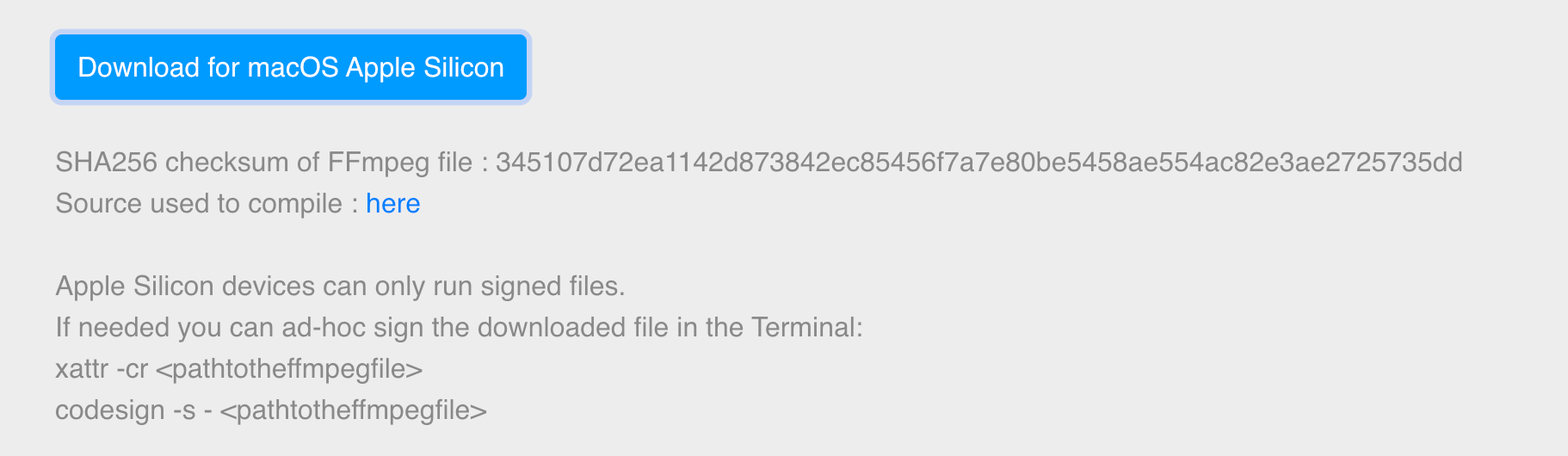
If it cannot be opened, or the speed is very slow, you can directly click this link to download. I have made a backup.
The ffmpeg downloaded is a binary file that the expert of this website has already compiled on his computer and can be executed directly.
After the download is complete, we need to perform SHA 256 verification on the file, of course, it doesn't matter if you don't verify it. The verification command is as follows:
shasum -a 256 ffmpeg
Get the result: 6d175a4743ca50256e89a8cdd731100f9cee33bd79aeea46894d209410dc6617 indicating that the file is indeed from the original author.
Open the terminal, then configure it into your Mac environment variables,
vim ~/.zshrc
Add a line, and add it to PATH
export FFMPEG_HOME=/Users/asher/workspace/software/ffmpeg
export PATH=$PATH:$MAVEN_HOME/bin:$FFMPEG_HOME:$JAVA_HOME/bin:$GRADLE_HOME/bin:.
Close the terminal and reopen it, try ffmpeg -version, you can see that there is already corresponding output.
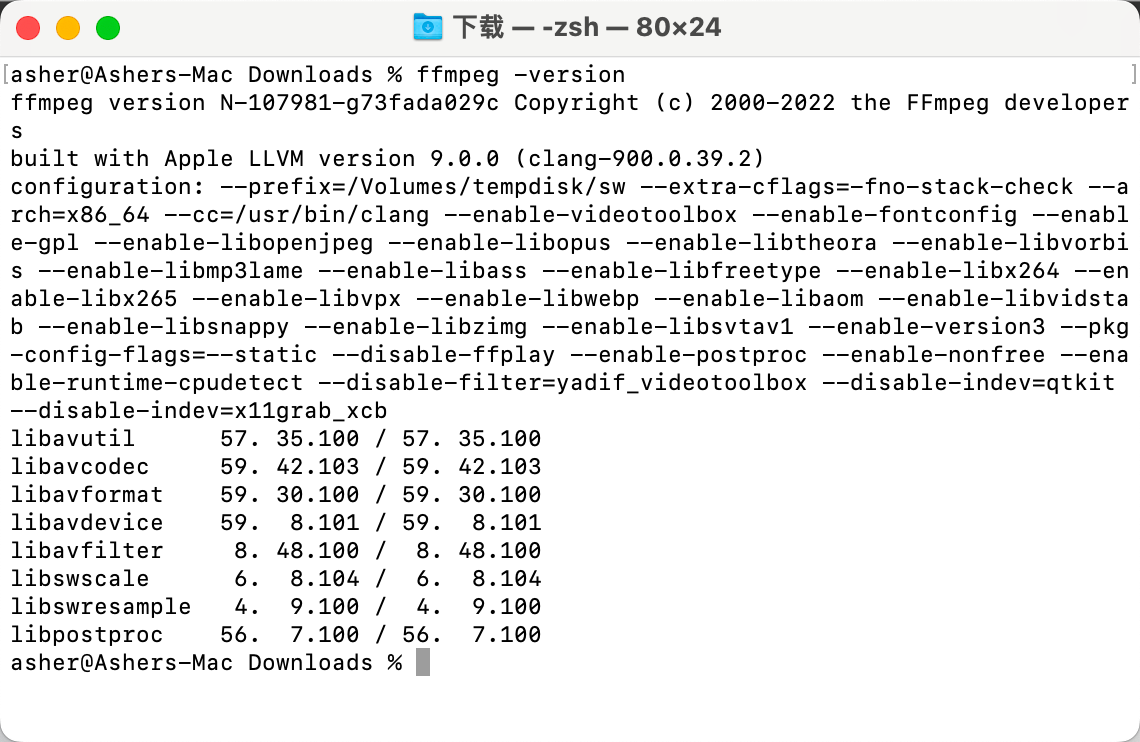
Cannot open?
If it cannot be opened, it may be because Apple Silicon can only run signed files, so you need to execute the following two commands in the directory of the ffmpeg file.
xattr -cr ./ffmpeg
codesign -s - ./ffmpeg
At this time, using this version of ffmpeg to transcode videos, etc., is much faster than before.
2. Compile ffmpeg yourself
This part is suitable for old brothers who like to toss, and there is also a relatively simple way, because an expert has already made a script for us.
Clone this git repository locally: ffmpeg-apple-arm64-build, and before compiling:
- Need to install xcode, which can be installed directly from the App Store. After installation, remember to open it first and agree to apple and other agreements.
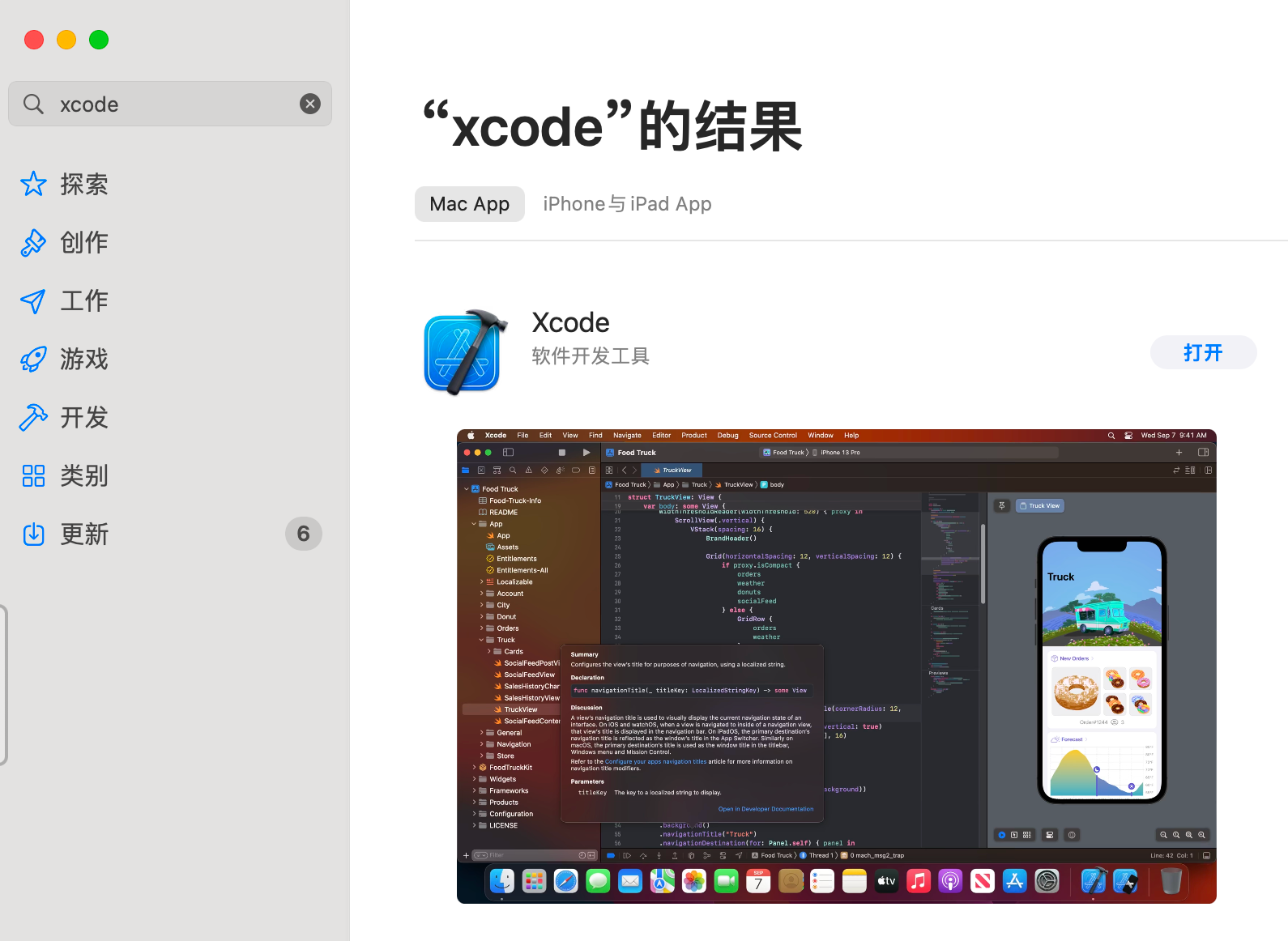
- Use a VPN, because many third-party dependency libraries on the external network will be cloned during execution.
- Register gitlab and add sshkey to your account, dependency library freetype will be used.
Then is the execution part. According to the readme document of this ffmpeg-apple-arm64-build, it is recommended that we first create a directory at will, and then compile in this directory.
mkdir ffmpeg-compile
cd ffmpeg-compile
Then execute
../path/to/repository/build.sh
During the period, because the git repository will be cloned, the speed depends on your network speed, and some strange errors will be thrown. When an exception occurs, you need to delete this directory first, and then start over... Wish you successful compilation!