Connecting to GNU/Linux Server (CentOS) from Mac via VNC
1. Install GNOME/KDE Graphical Interface
1.1 Install Window System
yum groupinstall "X Window System"
1.2 Install Graphical Interface Software
yum groupinstall "GNOME Desktop" "Graphical Administration Tools"
1.3 Start Graphical Interface
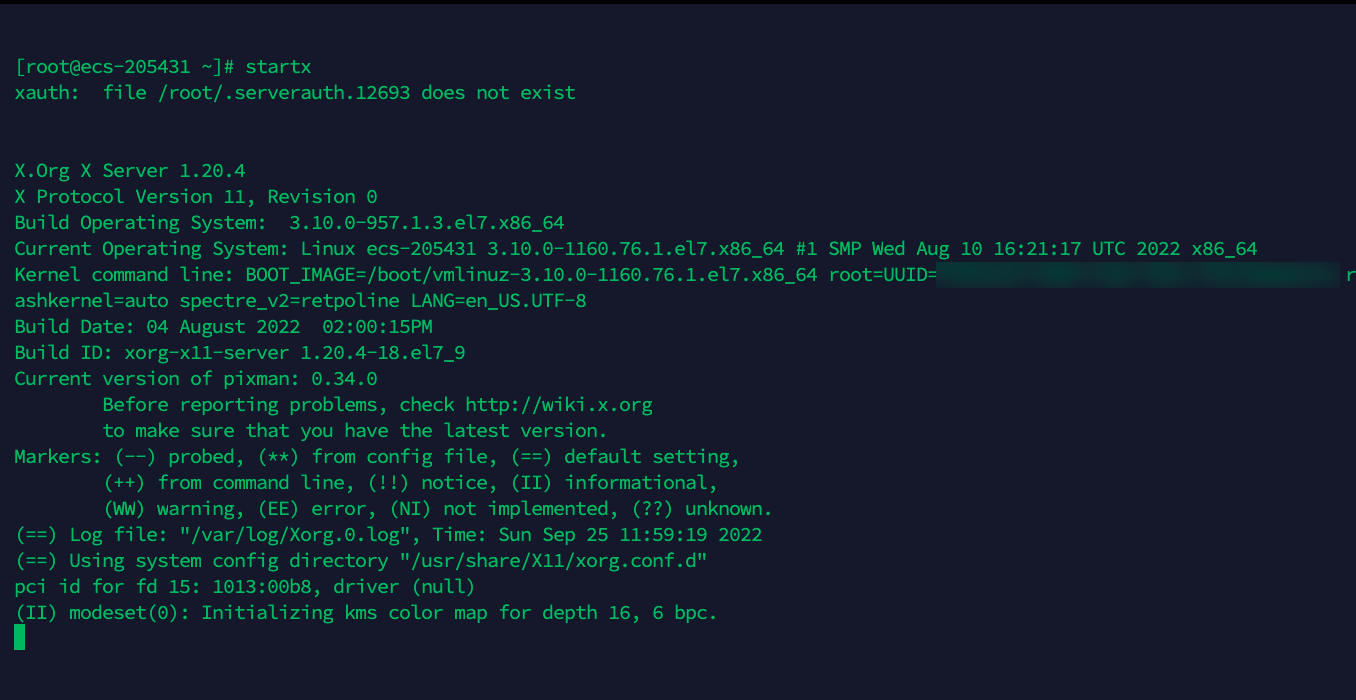
startx
At this point we can see it has started, but no graphical interface pops up - this doesn't affect subsequent operations.
The log message xauth: file /root/.serverauth.12693 does not exist also doesn't affect VNC connection.
2. Install x11vnc on CentOS
yum install x11vnc
2.1 Set Password
x11vnc -storepasswd
2.2 Start
x11vnc -forever -shared -rfbauth ~/.vnc/passwd
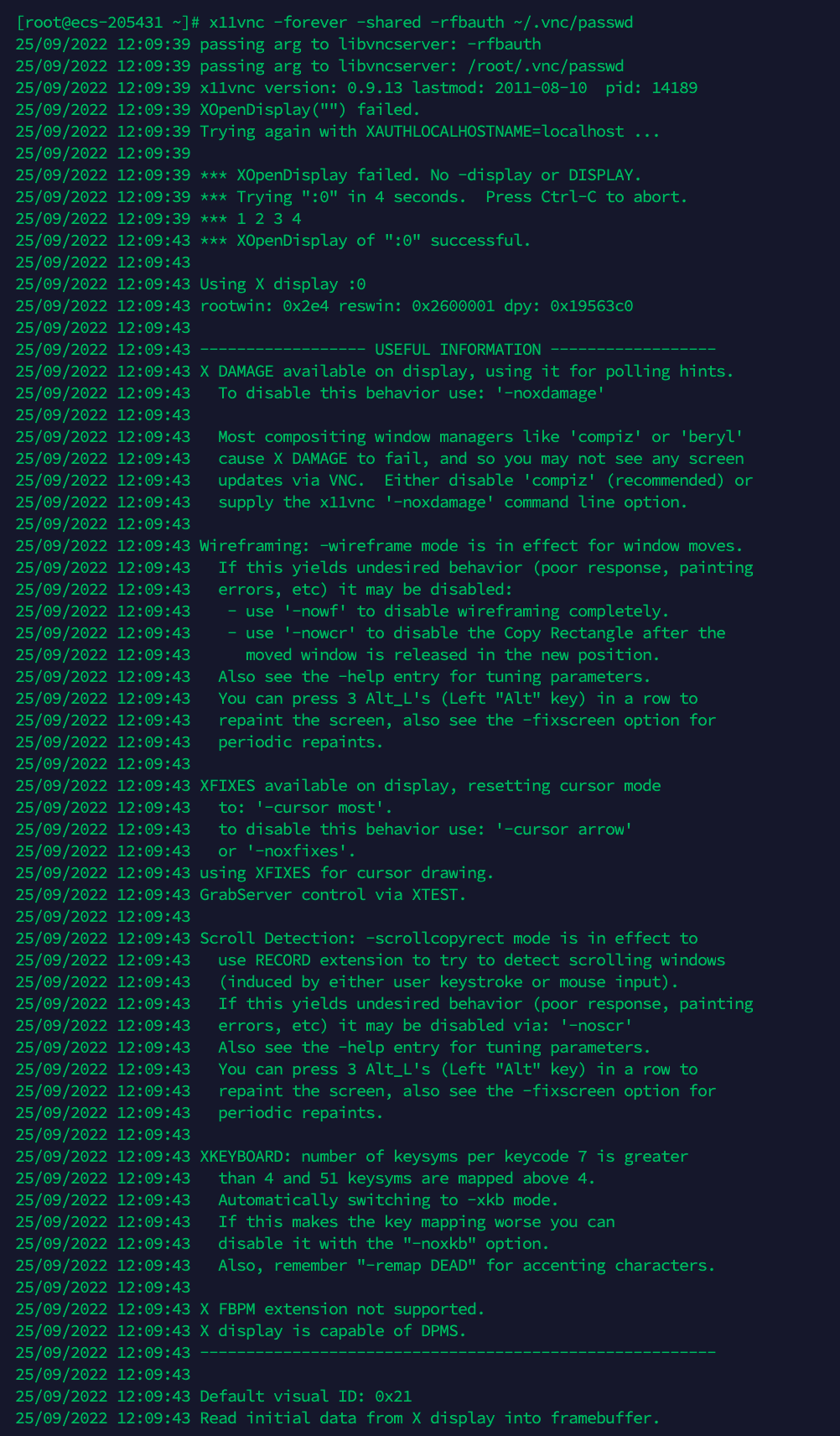
After startup, the port number will be printed - note it down. If you're using a cloud server, you'll also need to add security group configuration.
3. Install VNC Viewer on Mac
Official download: VNC viewer
After downloading and installing, you'll need to register an account with your email. This email will receive login verification messages, so use a valid one.
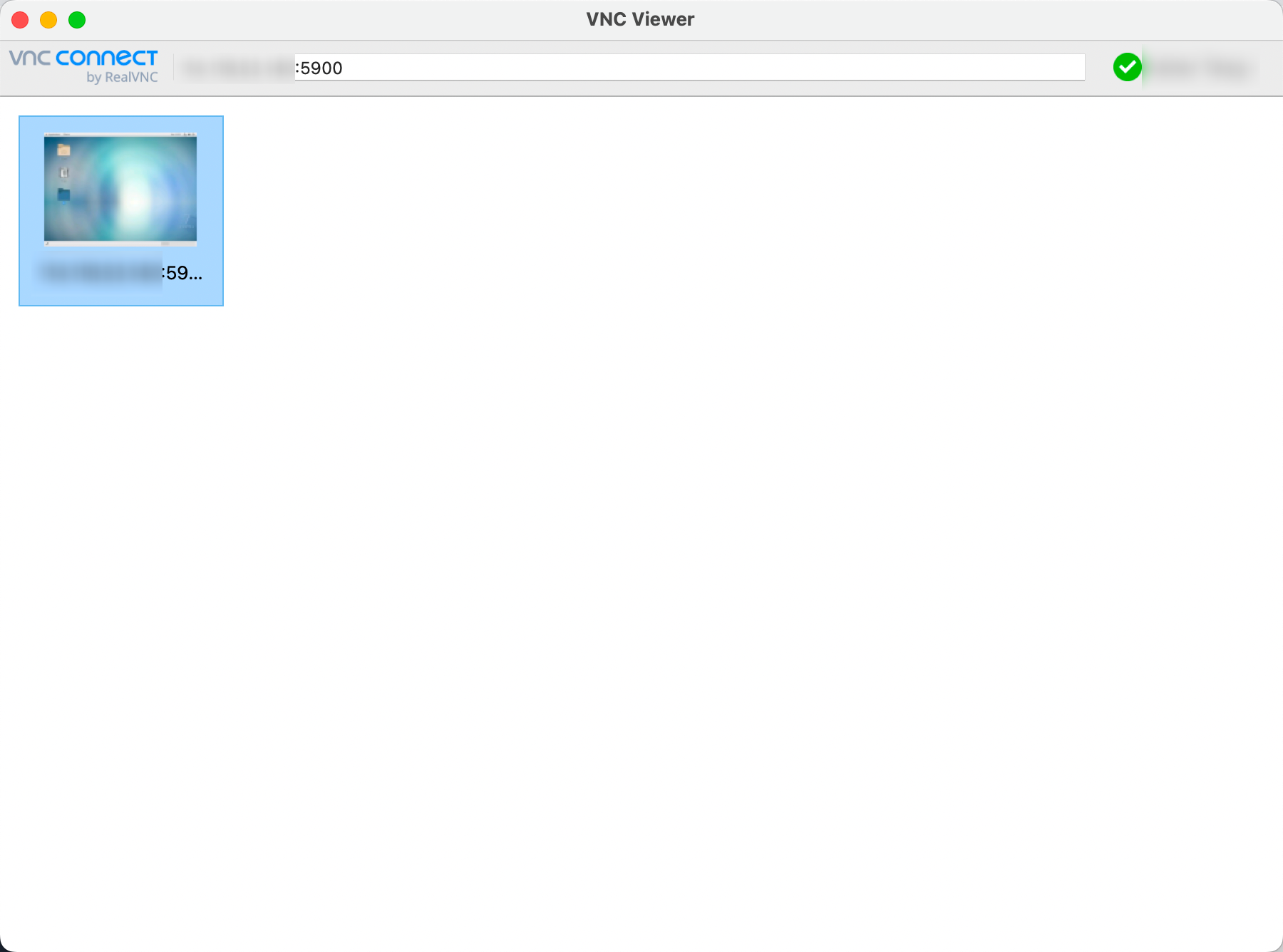
After logging in, the interface looks like this. Enter ip:port in the input box above and press Enter - a window will pop up asking for a password. This is the password you configured for VNC on the Linux server.
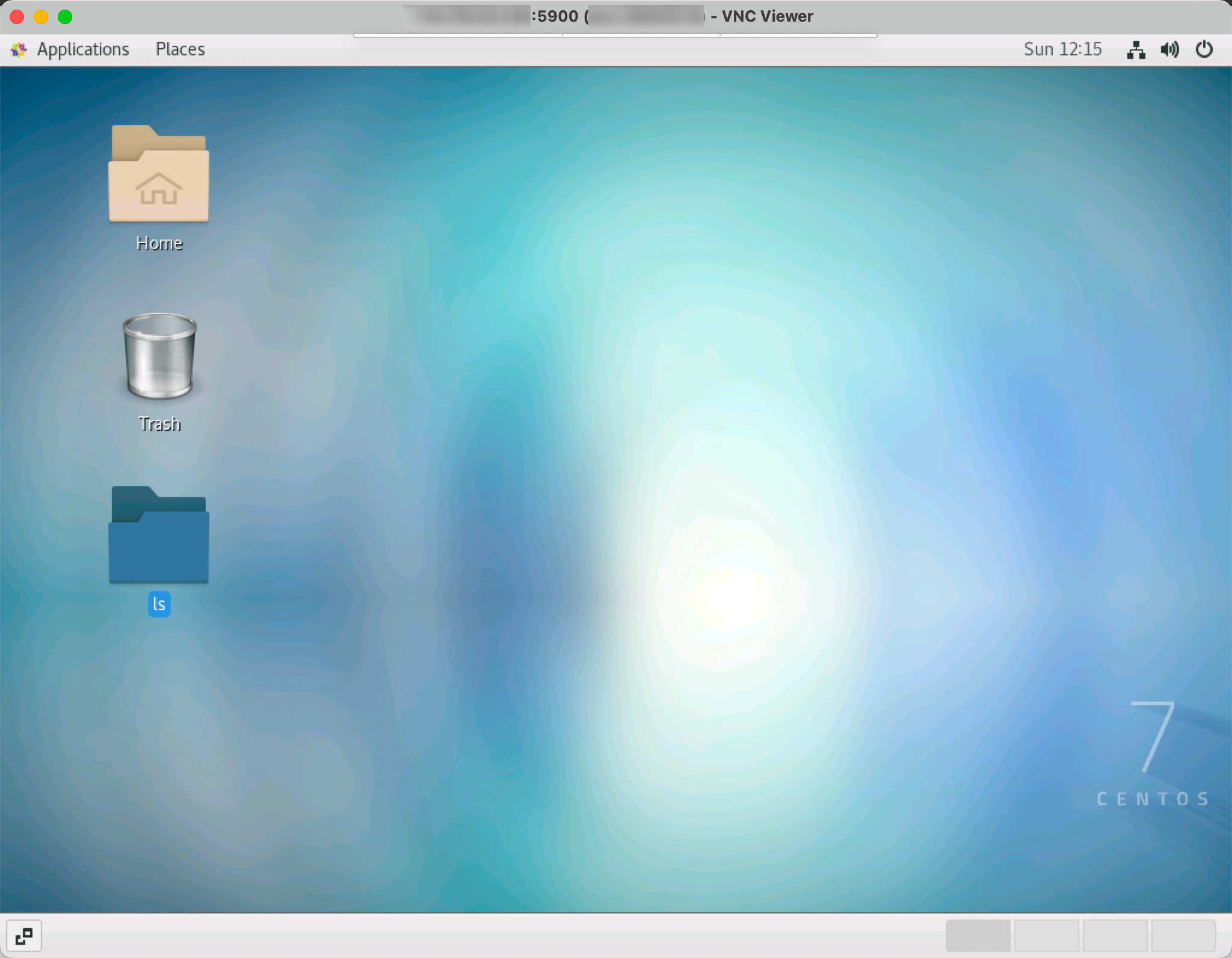
After logging in, try some operations. Personally, I feel the latency is quite low - slightly more comfortable than having many terminal windows open.
4. Set to Start on Boot
Use systemd to control startx and vncserver startup
4.1 Auto-start startx on Boot
vim /etc/systemd/system/startx.service
Write content:
[Unit]
Description = startx server
After =
Wants = network.target

[Service]
Type = simple
ExecStart = /usr/bin/startx

[Install]
WantedBy = multi-user.target
Configure startx to auto-start on boot:
systemctl enable startx.service
4.2 Auto-start VNC Server on Boot
vim /etc/systemd/system/vncserver.service
Write content:
[Unit]
Description = VNC server
After = startx.service network.target
Wants = network.target

[Service]
Type = simple
ExecStart = /usr/bin/x11vnc -forever -shared -rfbauth /root/.vnc/passwd

[Install]
WantedBy = multi-user.target
Configure VNC server to auto-start on boot:
systemctl enable vncserver.service
5. Possible Issues
5.1 x11vnc xopendisplay failed
5.2 VNC Cannot Connect
Check if your startx service has started - VNC service depends on this graphical interface.