Solving "the boot loader failed" Error When Installing Windows on Hyper-V
Original article: Solving the "Boot Failed. EFI SCSI Device" error when installing Windows 2012 Server on Hyper-V
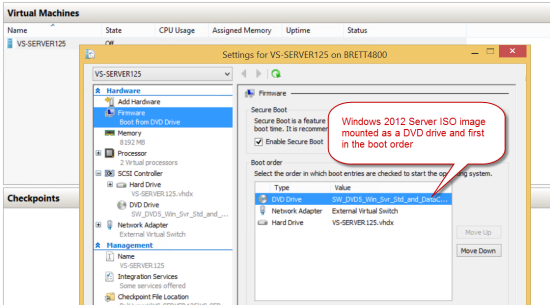
I've installed Windows 2012 Server on some Hyper-V images before, but encountered an unfamiliar error. I created a Hyper-V machine, configured it with a dynamic hard drive, added a DVD, mounted the Windows Server 2012 ISO, made sure the DVD drive was at the top of the boot order, and started it.
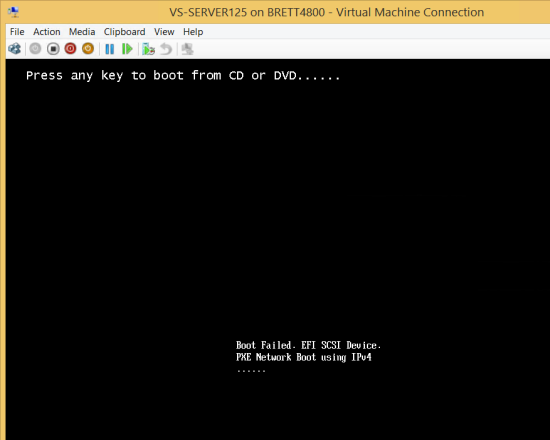
Then I saw a black screen with the error message: Boot Failed. EFI SCSI Device.
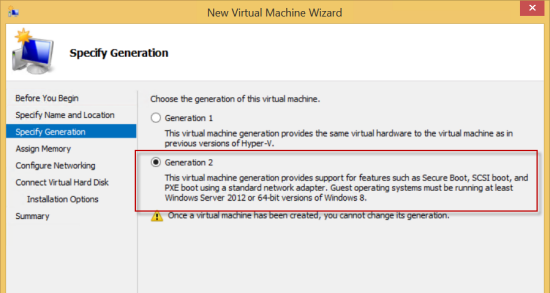
Here's a lengthy explanation from John Howard, Senior Program Manager on the Hyper-V team. The short answer: this happens because the virtual machine was created as a Generation 2 machine instead of Generation 1.
Key Point: Keep pressing a key during startup
To overcome this error, simply hold down a key while starting the virtual machine. You'll see "Press any key to boot from CD or DVD....." at the top of the error screen. The problem is it doesn't wait for you to press a key. Just make sure you're holding down a key until you see the Windows Boot Manager prompt, which allows you to boot to the DVD image.
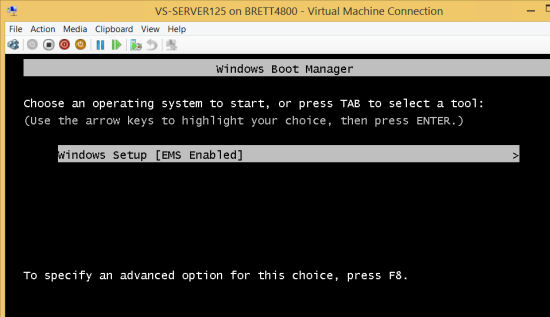
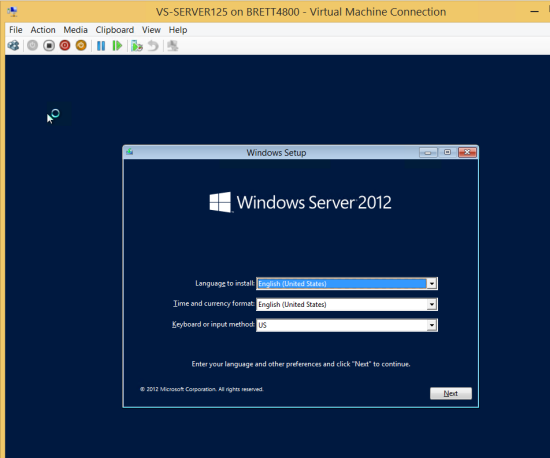
Then you'll successfully boot from the DVD and see the Windows Setup window.