Step-by-Step Guide to Package Your Java Maven Project into Windows Executable with GraalVM
1. Background
As a programmer, you'll always develop some programs to make your work easier. But as a Java programmer, using a JAR file for small office tools you develop for yourself or friends isn't a great experience, mainly because:
- Inconvenient to start
- Requires Java environment
- Sometimes the JAR is quite large, inconvenient for sharing
But now with GraalVM, these are no longer problems - directly generate an executable that works anywhere you put it.
2. GraalVM
GraalVM is a high-performance virtual machine that can directly compile Java programs into native executables that run without installing a JVM. Of course, its features go far beyond this - like multi-language support, lower memory usage, etc. - but these aren't covered in this blog. If interested, check out their official website.
Install GraalVM JDK
Download page: https://github.com/graalvm/graalvm-ce-builds/releases/tag/vm-22.3.1
Using Java 17 version here:
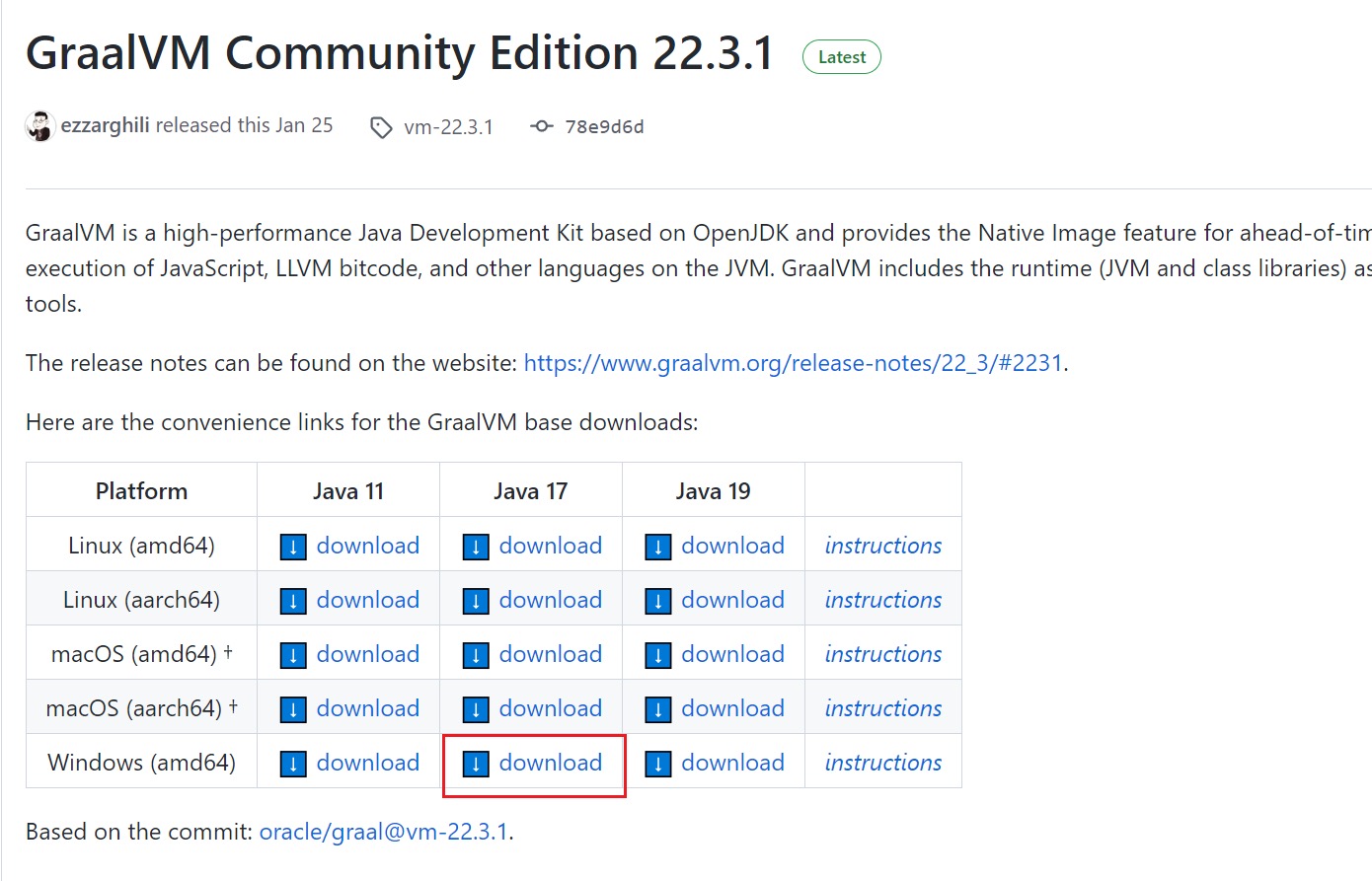
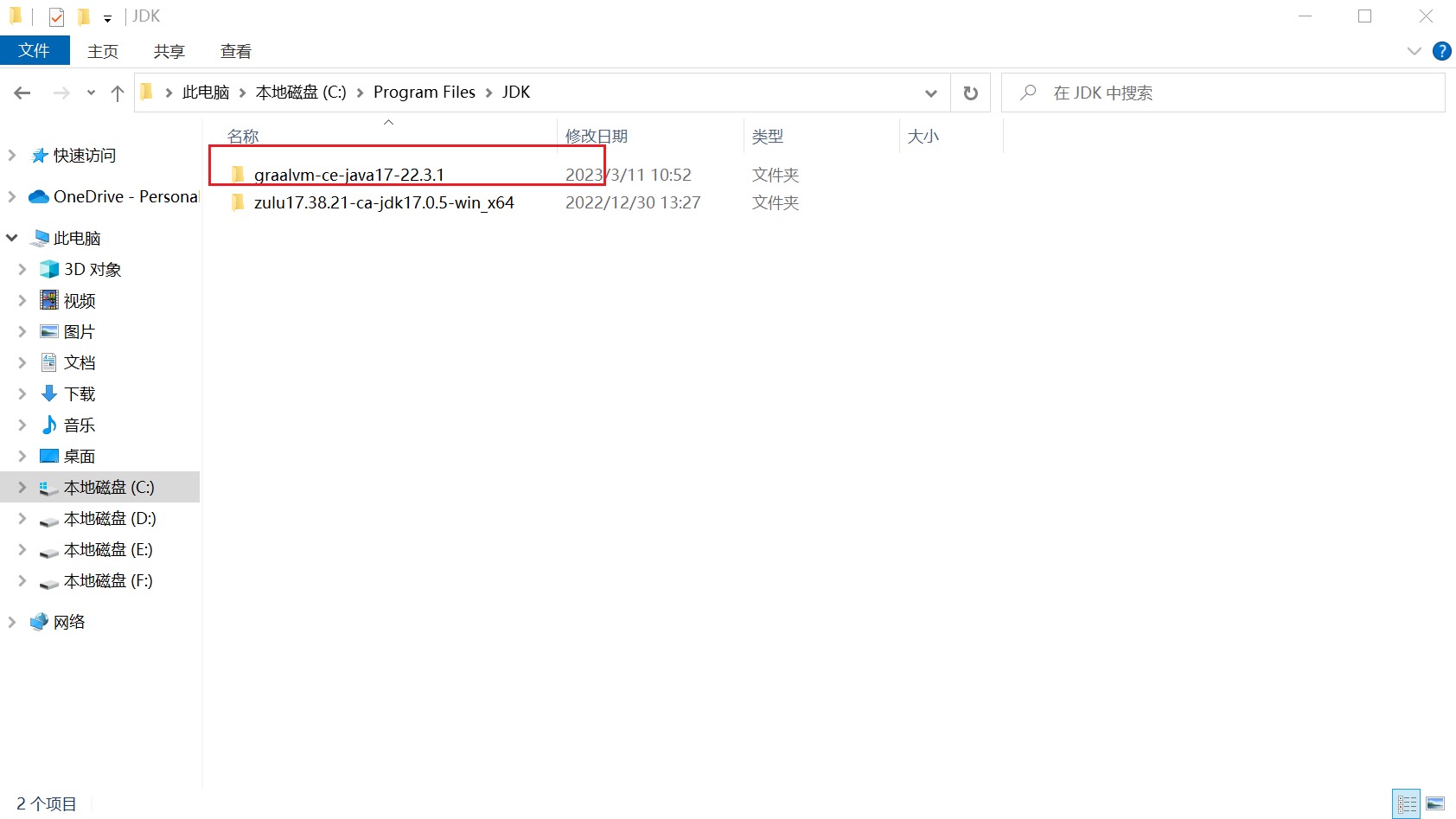
After downloading, put it in your local JDK directory, for example:
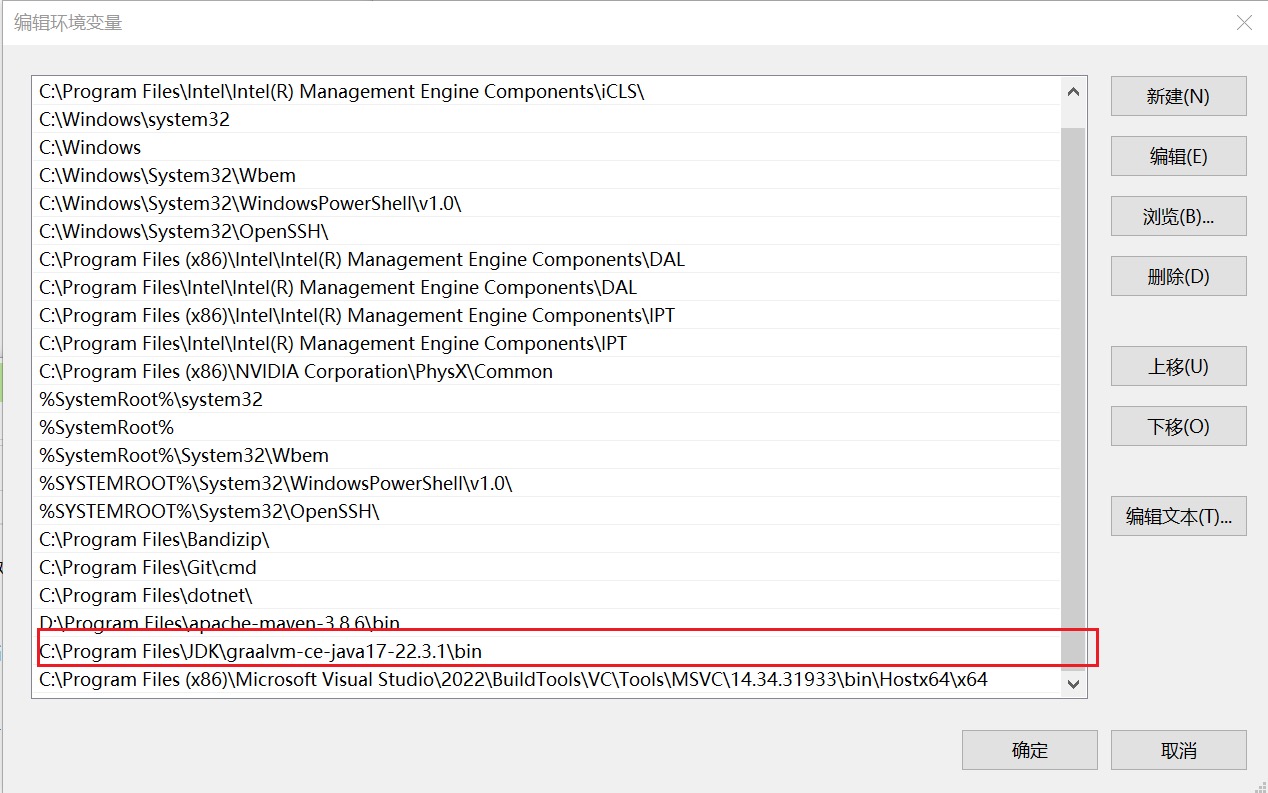
Then configure environment variables:
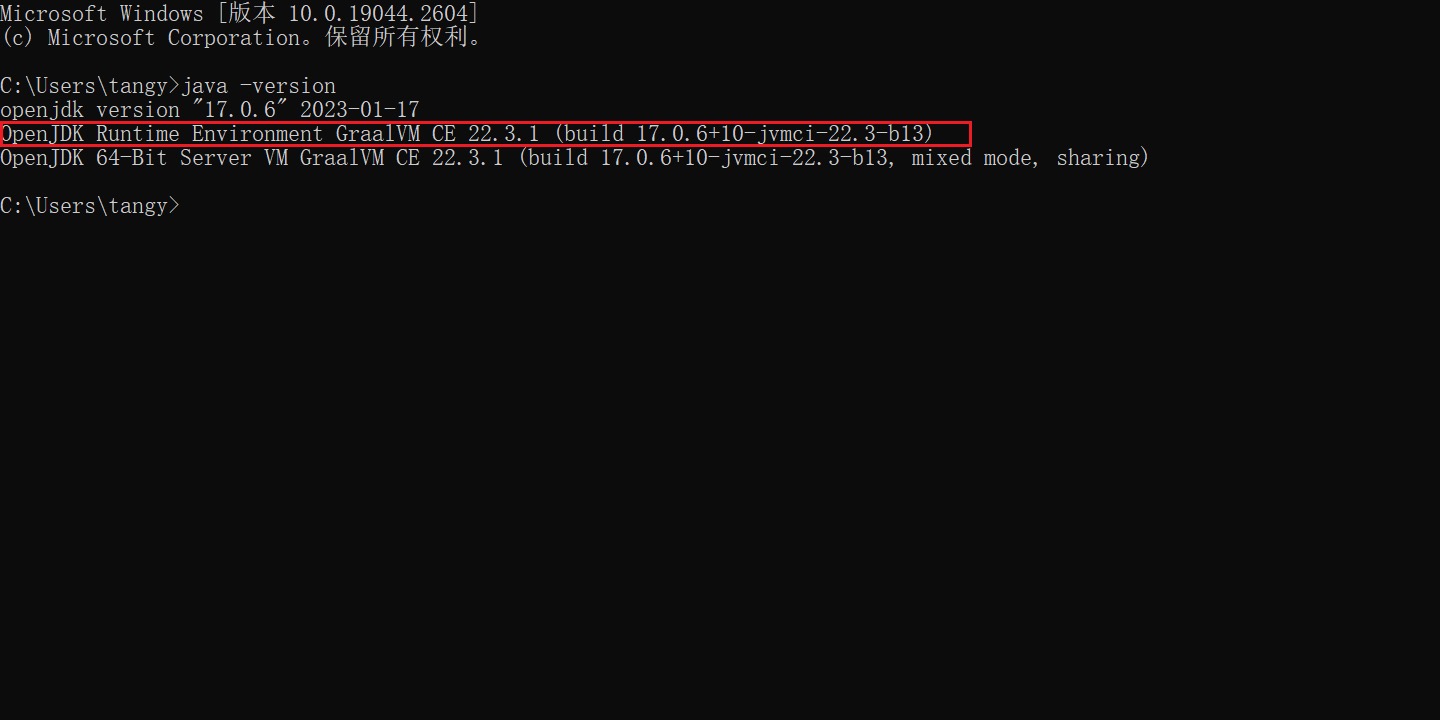
Simple test via cmd:
Install native-image
Native Image is a technology that compiles Java code ahead-of-time into standalone executables. The executable includes application classes, dependencies, runtime libraries, and native code statically linked from the JDK. GraalVM supports Native Image through the SubstrateVM submodule. Compared to JVM, the generated programs have faster startup times and lower runtime overhead.
Open a cmd window in administrator mode, then execute:
gu install native-image
3. Install Visual Studio
To package into an exe executable, this step is unavoidable. I recommend installing version 2019 or later. I installed Visual Studio 2022. Download: https://visualstudio.microsoft.com/vs/
After installation, we need some configuration, otherwise packaging will fail directly.
Configure cl.exe to System Environment Variables
After installing Visual Studio, you can find your cl.exe path by matching my path and configure cl.exe to system environment variables.
C:\Program Files (x86)\Microsoft Visual Studio\2022\BuildTools\VC\Tools\MSVC\14.34.31933\bin\Hostx64\x64
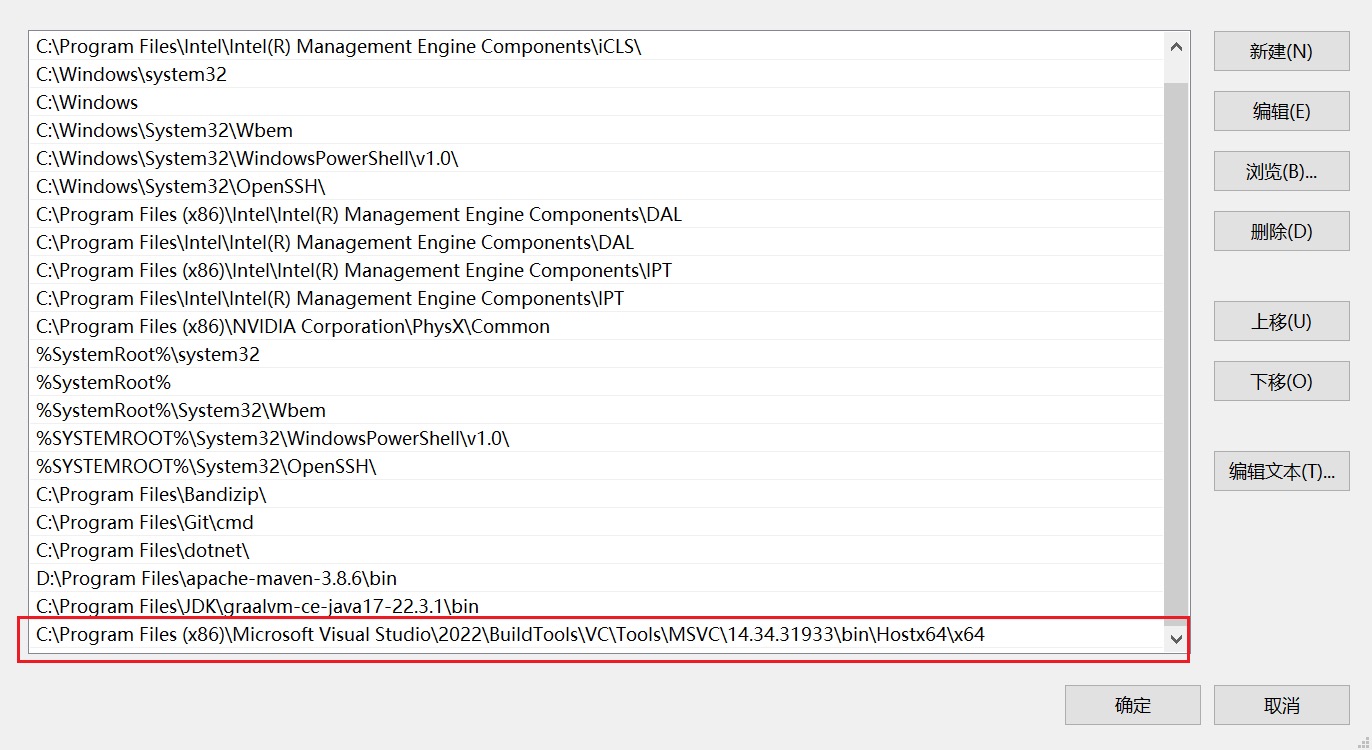
If you have issues, refer to my previous pitfall:
Default native-compiler executable 'cl.exe' not found via environment variable PATH
4. Package a Simple Java Application into an Executable
Here's an example with a simple Java application. Its function is to parse a large XML text from the clipboard into sorted XML, then put it back to the clipboard, making it convenient to compare XML at work.
Code is on GitHub: https://github.com/MingGH/clip-sort-xml
You might not believe it, but the main code was written by ChatGPT - I only wrote the get clipboard content and put to clipboard methods...
Add graal-sdk Dependency
<dependency>
    <groupId>org.graalvm.sdk</groupId>
    <artifactId>graal-sdk</artifactId>
    <version>21.3.0</version>
    <scope>provided</scope>
</dependency>
Use Tracing Agent to Generate Reflection Configuration for Maven Project
With the code ready, we need to use the tracing agent to generate reflection configuration for the Maven project.
First package your code as a JAR. Although this isn't a SpringBoot project, I'm using spring-boot-maven-plugin for packaging.
<plugin>
    <groupId>org.springframework.boot</groupId>
    <artifactId>spring-boot-maven-plugin</artifactId>
    <version>3.0.4</version>
</plugin>
You can quickly package via IDEA, or use command mvn clean package
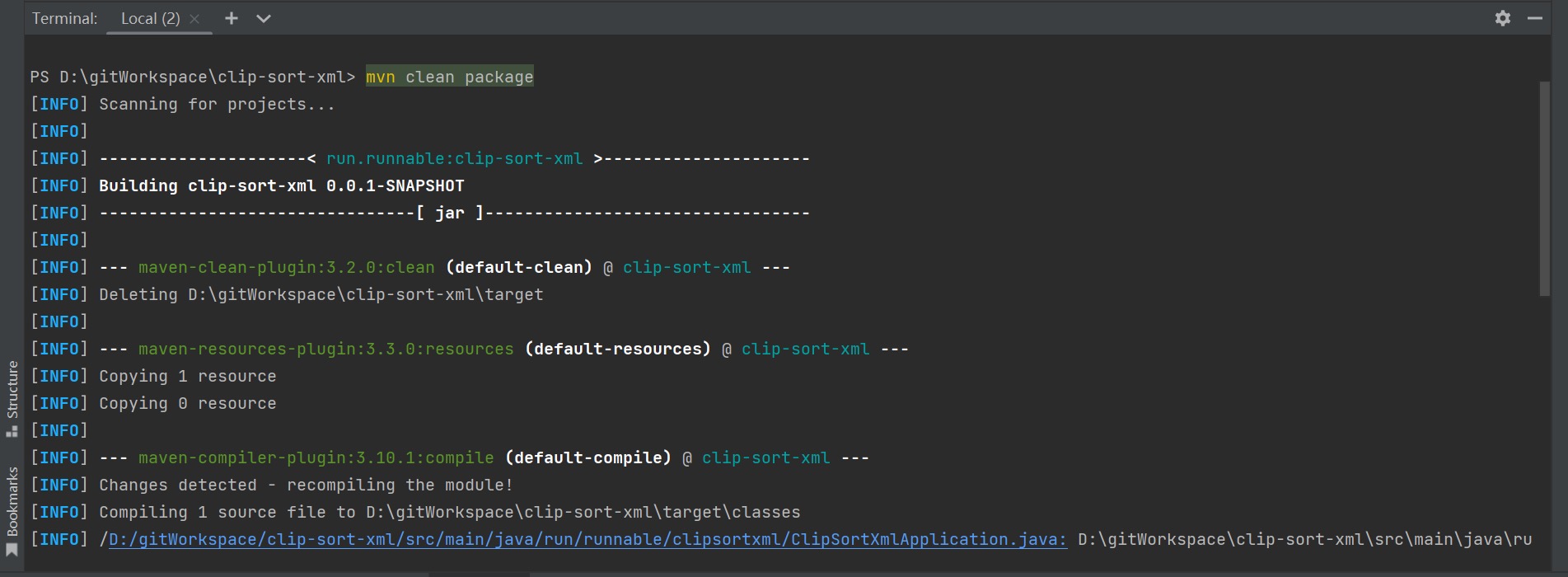
After successful build, enter the target directory: cd target
Then run the application with the tracing agent:
Note: Your IDEA's configured JDK also needs to be GraalVM JDK before executing this command.
java -agentlib:native-image-agent=config-output-dir=META-INF/native-image -jar ./app.jar
During execution, it will actually start your project and execute, so test both normal and exception flows.
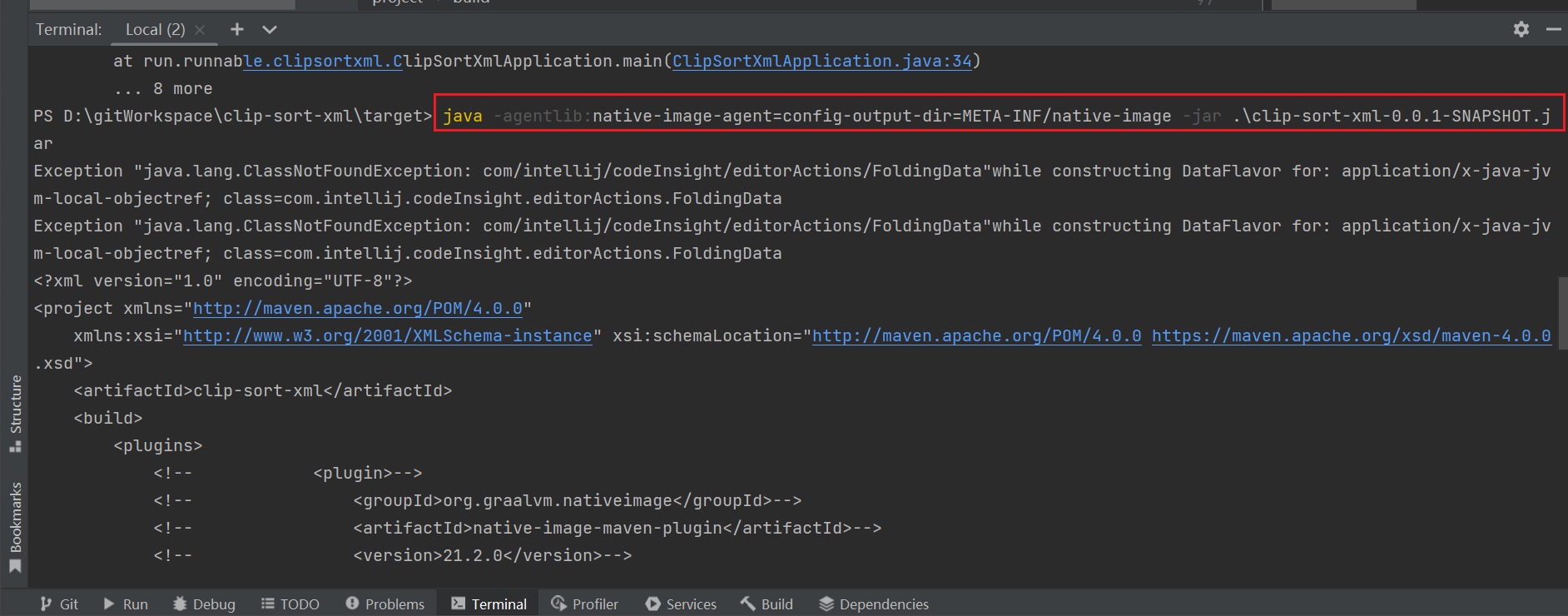
After execution, a META-INF folder will be generated in the target directory containing the reflection configuration generated by the tracing agent.
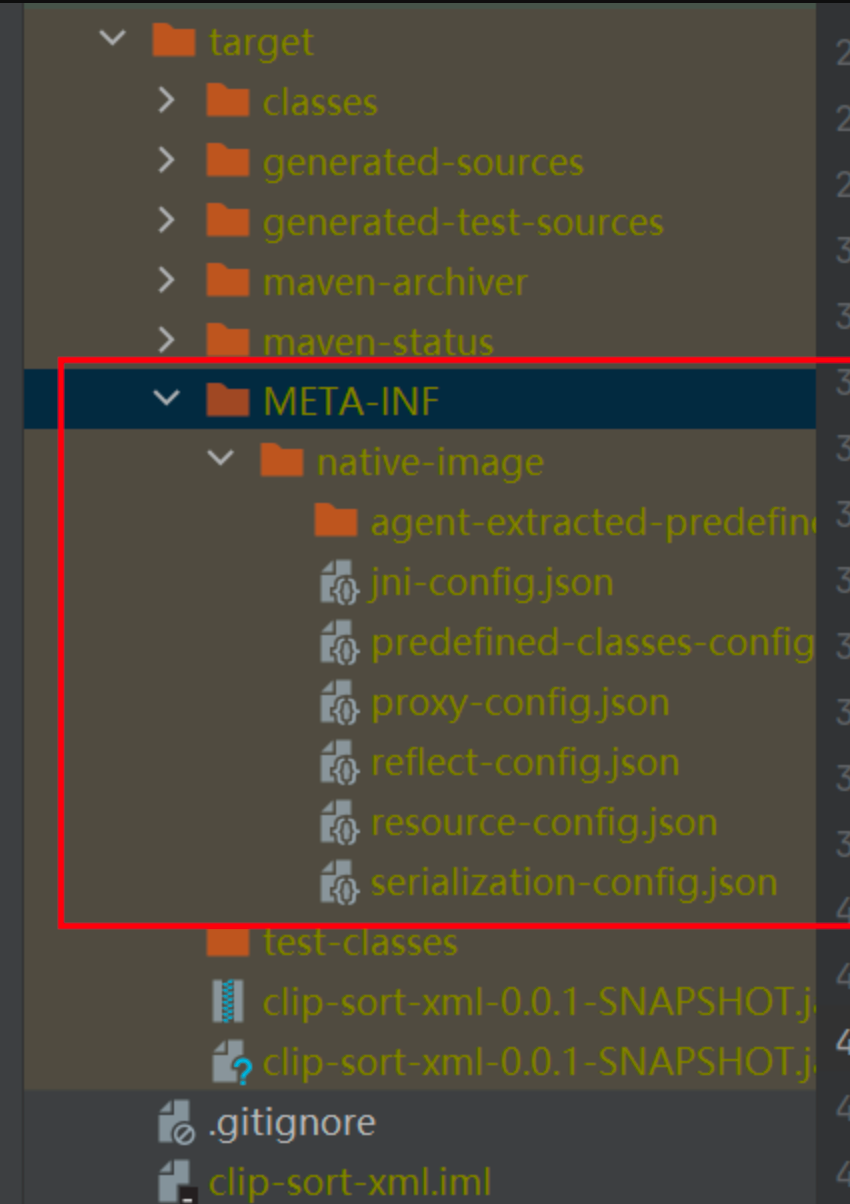
Copy this folder's contents to the project's resources directory:
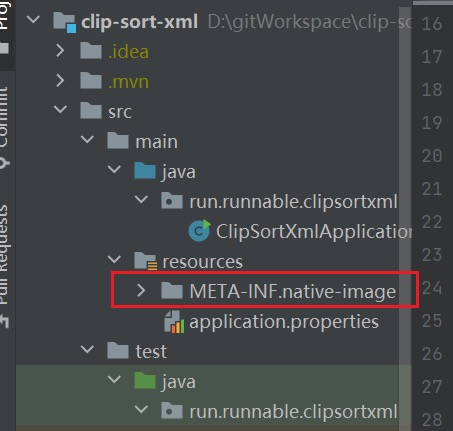
Then go back to pom.xml, comment out spring-boot-maven-plugin and add native-image-maven-plugin:
<plugin>
    <groupId>org.graalvm.nativeimage</groupId>
    <artifactId>native-image-maven-plugin</artifactId>
    <version>21.2.0</version>
    <executions>
        <execution>
            <goals>
                <goal>native-image</goal>
            </goals>
            <phase>package</phase>
        </execution>
    </executions>
    <configuration>
        <skip>false</skip>
        <imageName>graalvmMaven</imageName>
        <mainClass>run.runnable.clipsortxml.ClipSortXmlApplication</mainClass>
        <buildArgs>
            --no-fallback
        </buildArgs>
    </configuration>
</plugin>
Package via Native Tools Command Prompt
Almost done. From your Windows search window, open Native Tools Command Prompt, then navigate to your project path.
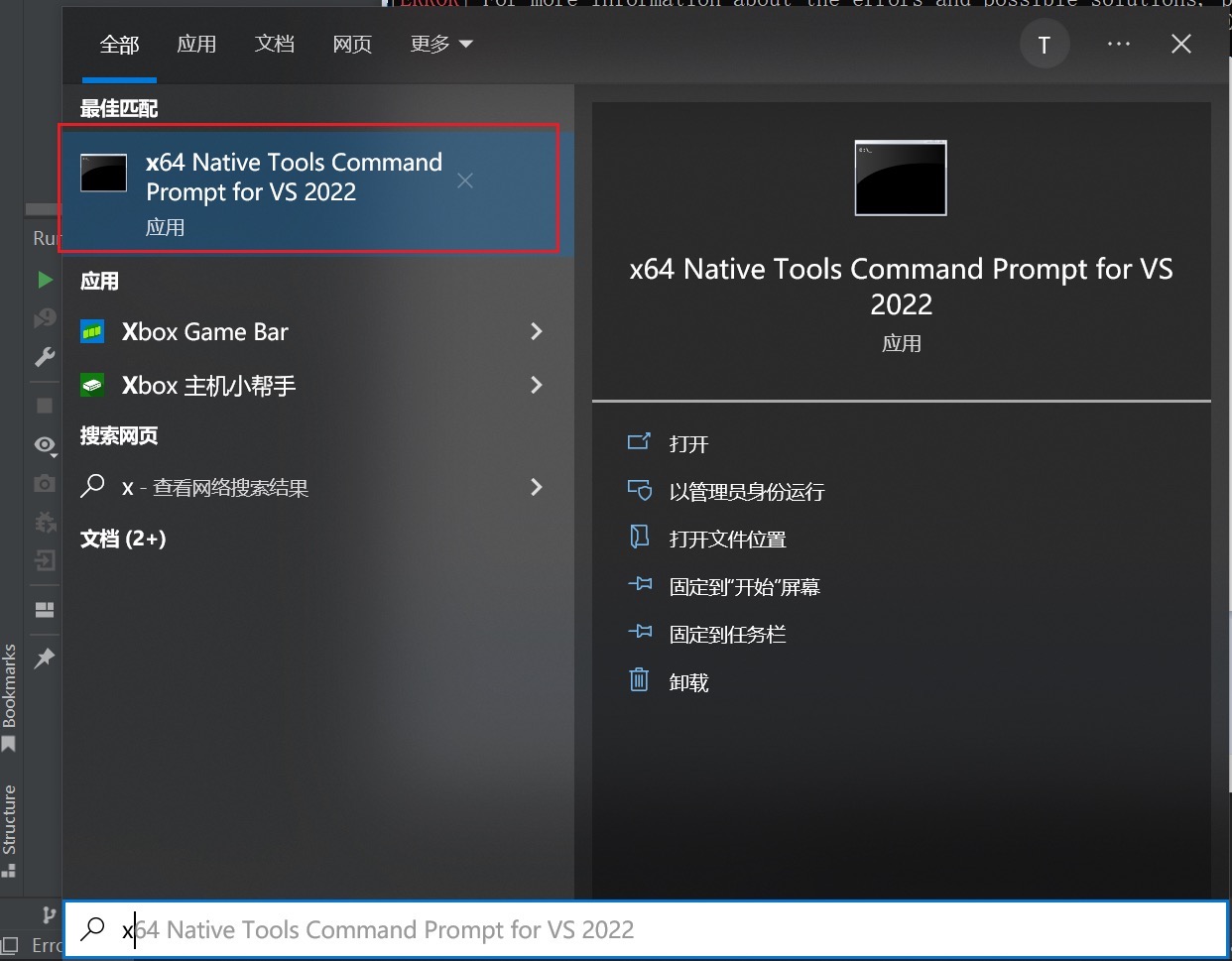
This console was a bit strange when I executed - it only worked in C drive, so I copied the entire project to a temp directory on C drive.
Enter the directory, then execute: mvn clean package - you'll hear your computer taking off. At least my computer's fans were spinning wildly preparing for takeoff.
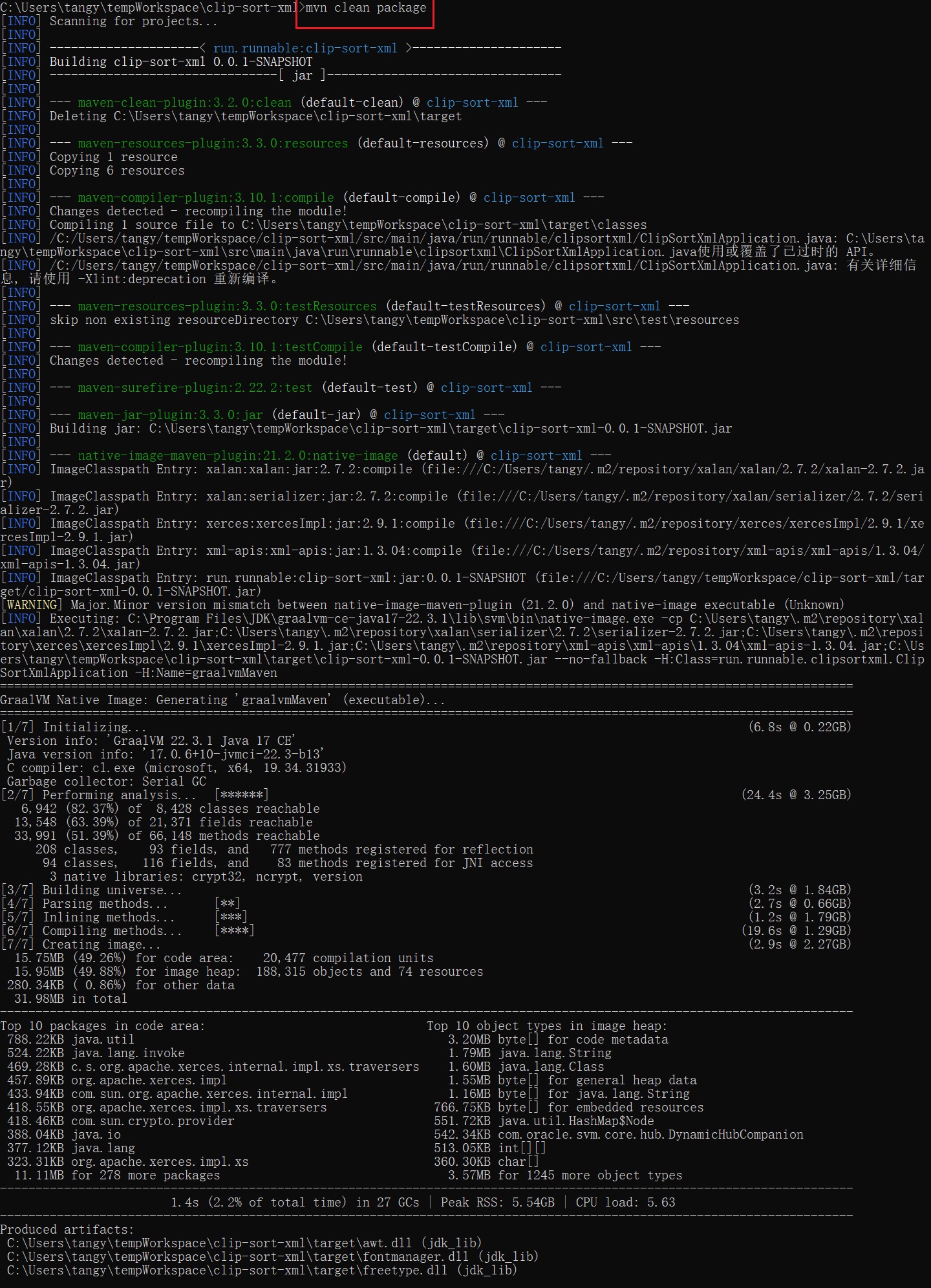
When you see build Success, packaging into executable is complete.
You might encounter some errors. I've already stepped on these pitfalls for you, so refer to my solutions:
native-image - fatal error C1034: stdio.h: include path not set
native-image throws fatal error 1083
Default native-compiler executable 'cl.exe' not found via environment variable PATH
After completing the above steps, you'll see an .exe file in the target directory. Wow, there really is one! Can't wait to click and try your feature.
But if you're directly using my project, the joy hasn't come that quickly yet.
After double-clicking, you'll see a black window flash by, then nothing happens. Actually, the code execution errored.
Solve Default flavor mapping not found Error
Let's troubleshoot normally. Execute the .exe file from any cmd window to see the specific error:
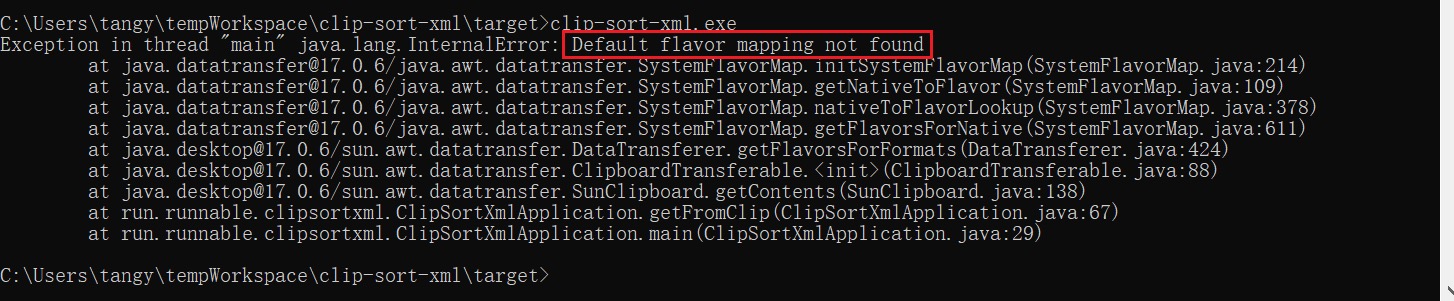
This error has been solved:
native-image: Default flavor mapping not found
Let me repeat here:
This is a bug in agentlib native-image-agent.exe. It's been reported in GraalVM issues. You can find others with this problem at: https://github.com/oracle/graal/issues/5369
The solution is simple. In the META-INF/native-image/resource-config.json generated by the tracing agent, add this line to includes: { "pattern":"\\Qsun/datatransfer/resources/flavormap.properties\\E" }
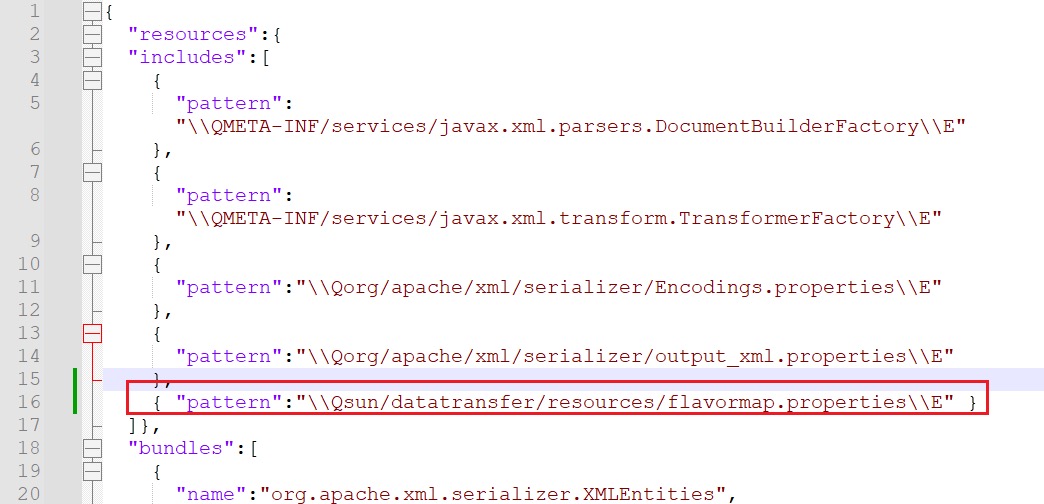
Save and re-execute mvn clean package
Now the packaged .exe file is truly usable. This way, a single exe file is more convenient to share with friends who don't know code.
5. References
[native-image] Swing application cannot be compiled on Windows
[native-image] makeShimDLL for java.dll is missing exports and fails
[native-image] java.home property not set
swing JTextField ctrl+v Throw Exception: java.lang.InternalError: Default flavor mapping not found
GraalVM Native Image Quick Start
native-image - fatal error C1034: stdio.h: include path not set
GraalVM and Spring Native First Experience - A Tool That Starts Your Application in 100ms
native-image: Default flavor mapping not found
native-image throws fatal error 1083
Default native-compiler executable 'cl.exe' not found via environment variable PATH
native-image: Default flavor mapping not found
Could not find agent library native-image-agent on the library path