JXLS Getting Started Guide [With Test Code]
Recommended reading: jxls2.3 - Concise Tutorial JXLS 2.4.0 Series Tutorial (3) - How Nested Loops Work
The following is a translated version from the official website
1. Getting Started
Let's assume we have a Java collection of employee objects that we want to output to Excel. The Employee class might look like this:
public class Employee {
    private String name;
    private Date birthDate;
    private BigDecimal payment;
    private BigDecimal bonus;
    // ... constructors
    // ... getters/setters
}
To output this object collection to Excel using Jxls, we need to:
- Add the required Jxls libraries to your project
- Create an Excel template with special markup
- Use the Jxls API to process the prepared template and fill it with employee data
Let's look at each of these steps in detail.
2. Adding Jxls Libraries to Your Project
The easiest way to add Jxls libraries to your project is using Maven and specifying the required libraries in your project build configuration file.
Jxls jars are available in the central Maven repository.
We need to add the following dependency to the core Jxls module:
<dependency>
    <groupId>org.jxls</groupId>
    <artifactId>jxls</artifactId>
    <version>2.10.0</version>
</dependency>
Alternatively, you can download the Jxls distribution from the Sourceforge website and use the jars from that distribution.
In addition to the dependency on the core Jxls module, we need to add a dependency on the Jxls transformation engine, which will perform all the underlying Java-to-Excel operations.
As explained in the Transformers section (see main concepts). The core Jxls module doesn't depend on any specific Java-Excel library; it only works with Excel through predefined interfaces.
Currently, Jxls provides two implementations of this interface in separate modules based on the famous Apache POI and Java Excel API libraries.
To use the transformer implementation based on Apache POI API, add the following dependency:
<dependency>
    <groupId>org.jxls</groupId>
    <artifactId>jxls-poi</artifactId>
    <version>2.10.0</version>
</dependency>
To use the transformer implementation based on Java Excel API, add the following dependency:
<dependency>
    <groupId>org.jxls</groupId>
    <artifactId>jxls-jexcel</artifactId>
    <version>${jxlsJexcelVersion}</version>
</dependency>
3. Creating the Excel Template
A template is an Excel file that uses special markup to specify how Jxls should output data.
Jxls provides some built-in markup processors that can be used to parse Excel templates and extract control commands.
If needed, you can also create a custom markup processor. Therefore, you can define your own markup for Excel templates and parse it appropriately to create the Jxls command structure.
Let's look at the built-in Jxls markup processors.
By default, Jxls supports Apache JEXL as an expression language that can be used in Excel templates to reference properties and methods of Java objects. The object must be available under some key in the Jxls context. To output the employee's name in a cell, we can put the following text in the cell: ${employee.name}. Basically, we just wrap the JEXL expression with ${ and }. We assume there's an Employee object available under the employee key in the context.
The property notation is configurable, so you can decide to use, for example, [[employee.name]] as a property notation. For more details on how to do this, see Expression Language.
The final template for the example of outputting a list of employee objects can be downloaded here and looks like this:
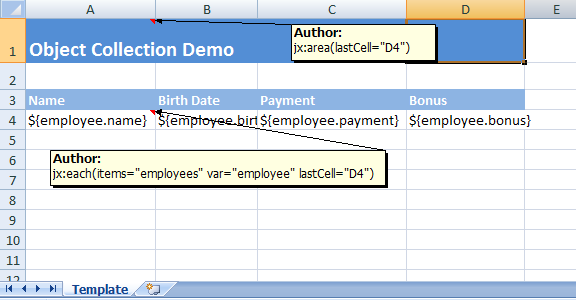
In the template cells in row 4, we use the JEXL expressions mentioned above to reference the employee object's properties.
Cell A1 contains an Excel comment with the following content: jx:area(lastCell="D4"). It defines the root area of our template as A1:D4.
The comment in cell A4 defines the Jxls Each-Command, with the comment text: jx:each(items="employees" var="employee" lastCell="D4"). The Each-Command will iterate over the object collection under the employees key in the Jxls context and put each individual collection item into the context under the employee key (defined by the var attribute). The Each-Command's body area is A4:D4 (defined by the lastCell attribute), which will be cloned and processed with each new Employee object in the context.
This example assumes using the XlsCommentAreaBuilder class to build Jxls areas in the template. By using this class, you can define Jxls commands in Excel cell comments. If you prefer to define commands in Java code, the template will be the same, but you'll need to remove the comments from the cells.
4. Using the Jxls API to Process the Template
Here you can see how to use the Jxls API to process the Excel template:
...
    logger.info("Running Object Collection demo");
    List<Employee> employees = generateSampleEmployeeData();
    try(InputStream is = ObjectCollectionDemo.class.getResourceAsStream("object_collection_template.xls")) {
        try (OutputStream os = new FileOutputStream("target/object_collection_output.xls")) {
            Context context = new Context();
            context.putVar("employees", employees);
            JxlsHelper.getInstance().processTemplate(is, os, context);
        }
    }
...
In this example, we load the template from the classpath resource object_collection_template.xls. The target Excel file will be written to target/object_collection_output.xls.
All the main processing is done in one line:
JxlsHelper.getInstance().processTemplate(is, os, context);
By default, JxlsHelper assumes you want to overwrite the template sheet with data.
But you can also choose to generate data in another sheet using the following method:
JxlsHelper.getInstance().processTemplateAtCell(is, os, context, "Result!A1");
Here the area will be processed at cell A1 of the Result sheet.
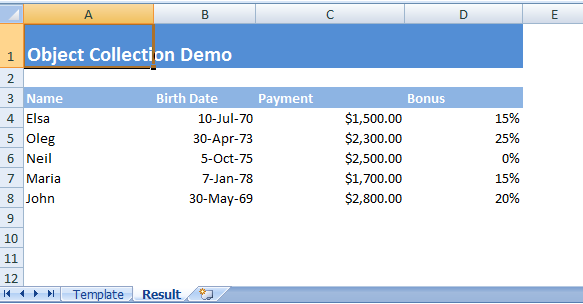
The final report can be downloaded and looks like this:
5. Test Code
Employee Class
public class Employee {

    private String name;
    private Date birthDate;
    private BigDecimal payment;
    private BigDecimal bonus;

    public String getName() {
        return name;
    }

    public void setName(String name) {
        this.name = name;
    }

    public Date getBirthDate() {
        return birthDate;
    }

    public void setBirthDate(Date birthDate) {
        this.birthDate = birthDate;
    }

    public BigDecimal getPayment() {
        return payment;
    }

    public void setPayment(BigDecimal payment) {
        this.payment = payment;
    }

    public BigDecimal getBonus() {
        return bonus;
    }

    public void setBonus(BigDecimal bonus) {
        this.bonus = bonus;
    }
}
Test Class
public static void main(String[] args){
        List<Employee> employees = new ArrayList<>();

        for (int i = 0; i < 10; i++) {
            Employee employee = new Employee();
            employee.setName("jack"+i);
            employee.setBirthDate(new Date());
            employee.setPayment(new BigDecimal(100000));
            employee.setBonus(new BigDecimal(100000));
            employees.add(employee);
        }


        File file = new File("~\\src\\main\\resources\\object_collection_template.xls");
        try(InputStream is = new FileInputStream(file)) {
            try (OutputStream os = new FileOutputStream("target/object_collection_output.xls")) {
                Context context = new Context();
                context.putVar("employees", employees);
                JxlsHelper.getInstance().processTemplate(is, os, context);
            } catch (IOException e) {
                e.printStackTrace();
            }
        } catch (IOException e) {
            e.printStackTrace();
        }


    }