How to Deploy Chrome on a Remote Server and Drive It with Selenium?
1. Introduction
Using Selenium to drive Google Chrome locally is very simple - you just need to add the following dependencies.
You don't even need to download the browser driver because the dependency will automatically download it. However, when you want to deploy your automation project on a remote server, it's handled differently since servers typically run GNU/Linux systems.
This article explains how to use Selenium on a remote server.
<dependency>
	<groupId>org.seleniumhq.selenium</groupId>
	<artifactId>selenium-java</artifactId>
	<version>4.18.1</version>
</dependency>

<dependency>
	<groupId>org.seleniumhq.selenium</groupId>
	<artifactId>selenium-chrome-driver</artifactId>
	<version>4.18.1</version>
</dependency>
2. Deploy Selenium Grid Server Using Docker
Selenium provides a Selenium Grid Server that can be deployed via Docker. Simply put, it's an easy way to run Selenium Grid in Chrome, Firefox, and Edge using Docker, making browser automation execution easier. Project address: https://github.com/SeleniumHQ/docker-selenium
2.1 How to Use?
As stated in the project documentation, pull and start with the following command:
docker run -d -p 4444:4444 -p 7900:7900 --shm-size="2g" selenium/standalone-firefox:4.19.0-20240328
Explanation of the command above:
-d: Option to run the container in background (daemon) mode.p 4444:4444: Maps container's internal port 4444 to host port 4444. This allows the host to access services running in the container through this port.p 7900:7900: Maps container's internal port 7900 to host port 7900. This may be for specific purposes like remote debugging.-shm-size="2g": Sets the shared memory size in the container to 2GB. Shared memory is used for communication and data sharing between processes in the container.selenium/standalone-firefox:4.19.0-20240328: Specifies the Docker image name and tag to run. In this case, it's a specific version of the Selenium Standalone Firefox image.
Note that the command above uses Firefox. If you want Chrome, you can find it on Docker Hub: https://hub.docker.com/u/selenium
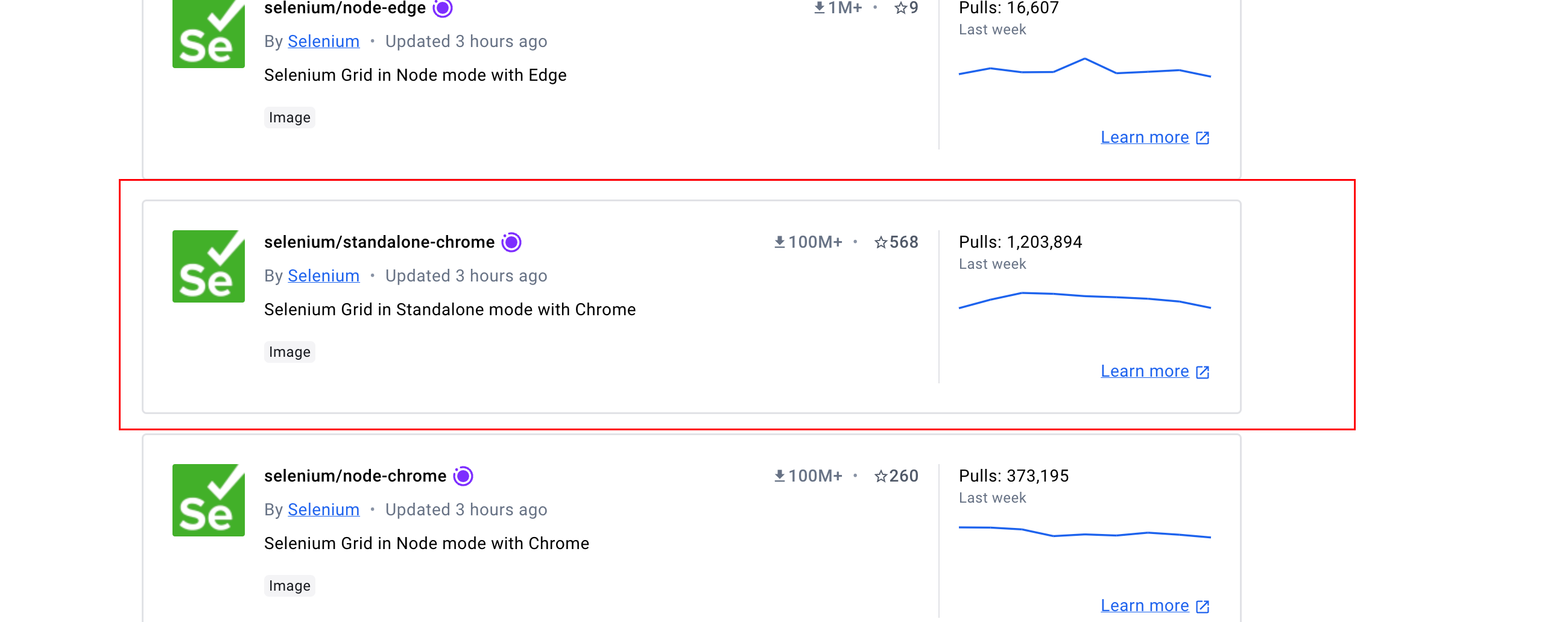
The command to run Chrome:
docker run -d -p 4444:4444 -p 7900:7900 \
-v /dir/selenium/data:/dir/selenium/data \
 --shm-size="2g" selenium/standalone-chrome:122.0
Note: I used -v to mount a directory in the container because sometimes you need to save browser login information. This way, your code can use options.addArguments("--user-data-dir=/dir/selenium/data"); to point to this path.
Also note: If you have an M1 chip Mac, you can pull and start the image with Docker, but after connecting via code, it will throw a browser crash error.
After running the command and starting the container, you can access port 7900 via VNC to see what's happening in the container:
http://ip:7900/?autoconnect=1&resize=scale&password=secret
Note that exposing port 7900 may lead to crypto-mining malware infection. It's strongly recommended not to expose it to the public internet. See article: Thousands of Linux Systems May Be Infected with "perfctl" (or "perfcc") Crypto-Mining Malware

The interface looks like this:

3. Modify Your Code for Adaptation
Since the browser is now on a remote server, we need to add new dependencies to drive the remote browser.
<dependency>
	<groupId>org.seleniumhq.selenium</groupId>
	<artifactId>selenium-remote-driver</artifactId>
	<version>4.18.1</version>
</dependency>

<dependency>
	<groupId>org.seleniumhq.selenium</groupId>
	<artifactId>selenium-api</artifactId>
	<version>4.18.1</version>
</dependency>

<dependency>
	<groupId>org.seleniumhq.selenium</groupId>
	<artifactId>selenium-http</artifactId>
	<version>4.18.1</version>
</dependency>
Testing found all three dependencies above are needed, otherwise you'll get ClassNotFound errors.
Your code changes from WebDriver driver = new ChromeDriver(options); to:
ChromeOptions options = new ChromeOptions();
options.addArguments("--user-data-dir=/dir/selenium/dat");
WebDriver driver = new RemoteWebDriver(new URL("http://ip:4444/wd/hub"), options);
Other operations are the same as driving a local browser - no code changes needed.
Additionally, this isn't the only way to write it. In Selenium's official tutorial, you can also specify different browser types like this:
ImmutableCapabilities capabilities = new ImmutableCapabilities("browserName", "chrome");
WebDriver driver = new RemoteWebDriver(new URL("http://ip:4444/wd/hub"), capabilities);